
Transfer Shortcuts
Transfer Shortcuts allow users to create predefined transfers to a specific recipient using a selected transfer type. Once set up, these shortcuts enable one-click transfers within the Transfer Modal.
-
Administrators can create global Transfer Shortcuts for all users.
-
Individual users can create personal Transfer Shortcuts in Settings > Shortcuts > Transfers List.
-
Users can also create shortcuts during the Transfer Workflow by clicking the + icon next to the search text box.
Managing Transfer Shortcuts
The Transfers List page displays:
-
My Transfers – Personal shortcuts created by the user.
-
Shared Transfers – Globally created shortcuts (not editable).
Users can search, add, delete, edit, or reorder their personal shortcuts to optimize their workflow.
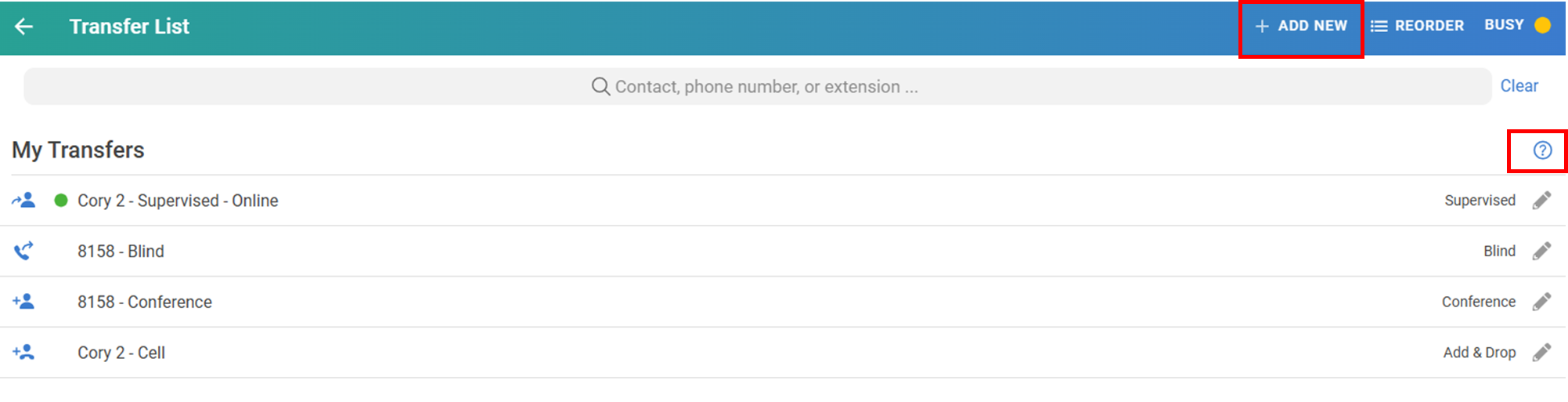
Transfer Types
When adding or editing a Transfer Shortcut, users can choose from four transfer types:
-
Add & Drop (Shortcut only)
-
Blind (Voice calls only)
-
Conference (Shortcut only)
-
Supervised
Note: Add & Drop and Conference transfers are available only as shortcuts and will not appear as Transfer buttons during the Transfer Workflow.
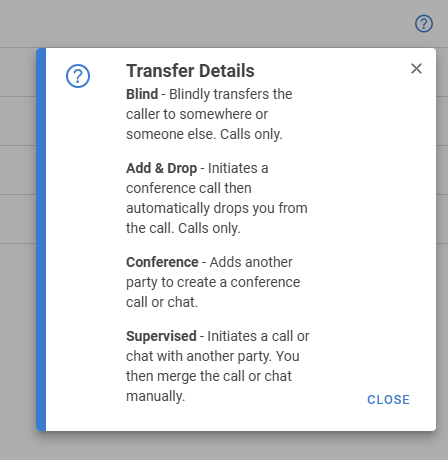
The behavior of each transfer type is accessible via the ? icon on the Shortcuts page or during the Transfer Workflow.
Note: Blind and Add & Drop transfers apply only to voice calls. If a user is transferring a chat message, these shortcuts will not be visible during the transfer process.