
Date: 10/19/2026
Desktop Windows: Keep LinkLive always in Foreground
Agents can now keep LinkLive.app visible above other applications, so they don't miss incoming sessions while working in a CRM, EHR, core banking system or other application.
-
A new lock icon in the top toolbar, next to the status selector, opens the Always on Top setting.
-
Switch the toggle to Enabled to keep the LinkLive window in front of other windows. Switch it to Disabled to go back to normal window behavior.
-
The setting is saved per device and applies again automatically at the next login.
-
For security, Always on Top turns off at logout, so an unattended, logged-out window never stays pinned over other applications. The saved preference is kept for the next login.
-
Available in LinkLive Windows Desktop app only. It does not appear in the browser version.
Terminology update to Queues and Automations
Throughout LinkLive applications, the apps now use term “Queue” instead of “Hunt Group” and “Automation” instead of “Auto Assistant”, Only the on-screen text changed.
Build: Stack 26.10.1
LinkLive Admin: Dark Mode for LinkLive Administration
The LinkLive Administration portal now has a dark theme, which is easier on the eyes for administrators and supervisors who work in it for long periods.
-
A new light/dark toggle sits in the top navigation bar, next to the signed-in user name and Log Out.
-
Follows your system setting by default. Until you pick a theme yourself, the portal uses your operating system's light or dark preference and switches when that preference changes.
-
Remembers your choice. Once you pick a theme, it is saved in your browser and used on every admin page, including login, multi-factor authentication (MFA) and password change.
-
No flash of the wrong theme. The selected theme loads before the page draws.
-
Status highlights, such as server flag warnings on the Services page, stay readable in both themes.
Build: Stack 26.10.1
LinkLive Admin: Refreshed Login Experience
-
The LinkLive Administration login pages have an updated look, with the current LinkLive logo, a branded background and simpler user name and password fields.
-
The portal's header and accent colors now use the current LinkLive brand palette in both light and dark themes.
Build: Stack 26.10.1
Stack 26.10.3
Voice entry of Chat IVA Messages
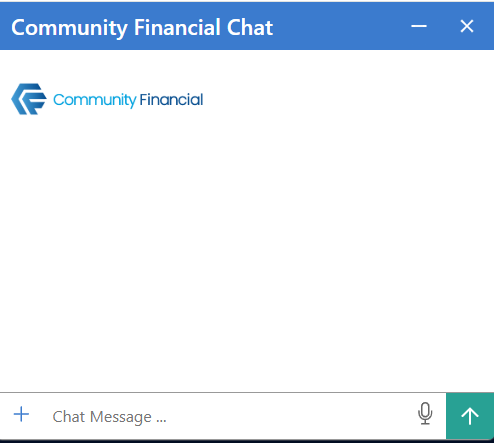
Visitors in the Chat IVA can enter messages by speaking rather than typing. LinkLive turns the speech into text and places those words in the chat, so the visitor and the agent both see them in the conversation.
-
A microphone button, labeled Voice message, appears beside Send once the visitor is in the chat.
-
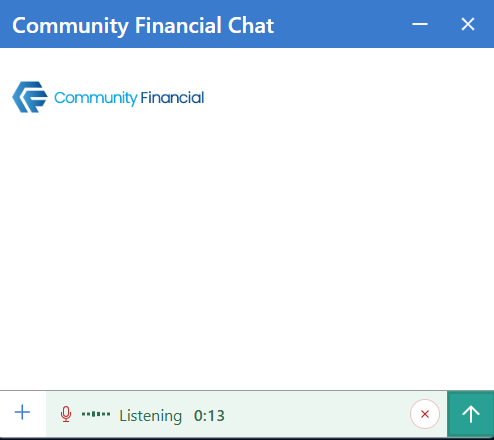
The visitor taps the microphone and speaks. The message box shows Listening, a sound-level display, and a countdown from 0:15. In the last five seconds the countdown turns red.
-
The visitor taps Send, labeled Send voice message while listening, or presses Enter. If they are still speaking when the countdown ends, the message sends on its own.
-
Cancel discards the recording.
-
A recording that is too short is not sent. The visitor sees: “Clip too short; speak a bit longer, then tap send.”
-
The message box shows Sending... while the words are prepared. The words then appear in the chat as a message. Any text already typed and not yet sent stays in the message box.
-
The browser asks for the microphone the first time. If access is blocked, the visitor sees: “Microphone access is required for push-to-talk.”
-
If the words cannot be sent, the visitor sees: “Couldn't send your voice message. Please try again.” If speech is not recognized, they see “Nothing heard in push-to-talk clip” followed by a status number.
-
The microphone is available in browsers that can record audio, when Push-to-Talk is enabled under Client Tools on the profile used for the website chat. Enable is the default. Disable leaves the button on screen and turned off. Hide removes the button.
-
The agent sees the visitor’s words in the chat.
Build: Stack 26.10.3
LinkLive Admin: Grouped navigation
The administration menu is grouped, so the pages you use most often are easier to find.
-
Configuration holds Users, Flows, Automations, and Queues. Flows and Automations are separate items.
-
External Services holds Campaigns when that right is assigned.
-
Platform holds Status, Event Log, Services, Configuration, Management, Tools, Voice Trunks, and Administrators. Some of these appear only for a global administrator.
-
Each section can be expanded or collapsed. That choice is saved in the browser and used again on the next visit.
-
The menu can be collapsed to icons. The current section stays highlighted.
-
The group picker is a searchable list. Type to narrow the groups, then choose one. The control to view the portal as that group's administrator is labeled on the checkbox.
Build: Stack 26.10.3
LinkLive Admin: Tabs for Queues, Flows, Automations, and Trunks
Queue, Flow, Automation, and voice trunk settings open on tabs. The tab for the settings you are editing stays selected, and the labels stay readable in both light and dark themes.
-
A Queue has Queue Account, Schedule, Queue Options, and either Configuration or Chat Options. Handler and Resources appear when they apply to that queue and to your access.
-
A Flow or Automation has an Account tab, Schedule, and, when they apply, Configuration, Handler, and Resources.
-
A voice trunk has Trunk Account and Options.
Build: Stack 26.10.3
Flow Builder
The flow editor follows the same actions as the automation builder, and that editor can be shown inside the builder.
-
Branch names are shown on the canvas. A route with no branch yet reads Select branch.
-
Debug simulation follows Go to Branch, listen matches, and the exits configured on a step.
-
Start is the opening of the flow and has no settings.
-
An API step can be saved before its URL is filled in.
-
The embedded editor has no watermark.
-
Numerous performance and bug fix updates, including dark-mode backgrounds on the event log and mail pages, administration navigation focus, and more reliable handling when a chat window closes.
Build: Stack 26.10.3
-
Numerous performance and bug fix updates
Past Updates